
Phone Settings That Actually Matter for Daily Use
Not all settings are important. We've picked out the ones that make your phone easier to use — battery life, notifications, and text size included.
Why These Settings Matter
Your phone comes with hundreds of settings. That's overwhelming. We're not going to walk you through every option — instead, we've focused on the handful that actually change how your phone works in daily life. These are the ones that'll save your battery, reduce notifications that drive you crazy, and make text easier to read. Skip the rest.
The good news? You don't need to be tech-savvy to adjust these. We'll show you exactly where to find each setting and what changing it does. Most people spend about 10-15 minutes total on this stuff, and then they're done.
What You'll Learn
- How to extend battery life without sacrificing usability
- Which notifications to keep and which to silence
- Making text bigger so you don't have to squint
- Location and privacy settings that actually matter
- Simple performance tweaks that work
Battery Life: Start Here
Battery is the first thing people complain about. Your phone might drain quickly because of what's running in the background, not because the battery's bad. There's a simple fix.
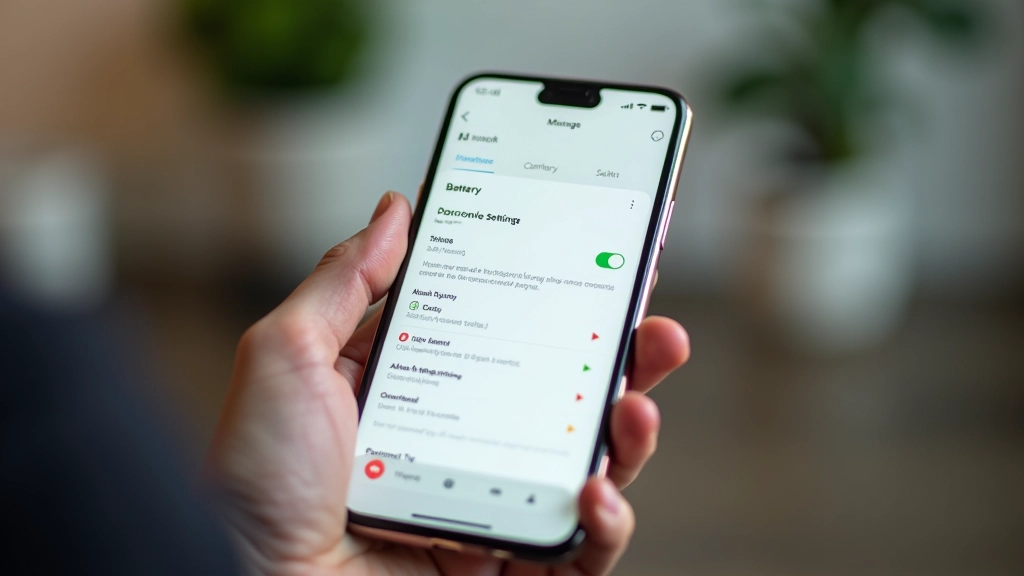
Look for "Battery Saver" or "Low Power Mode" in your settings. Turn it on when you hit 30% battery, and your phone will last noticeably longer. It won't break anything — it just slows down some background processes that don't really matter if you're not actively using them.
Second: check what apps are draining your battery most. Go to Settings → Battery and look at the list. If something's using a ton of power and you barely use it, you've got options. You can restrict that app's background activity or just uninstall it. The difference can be 2-4 extra hours of use.
Pro tip: Brightness is a battery killer. If you set it to auto-adjust instead of manual, you'll see real improvement. Your eyes adjust to the light in the room — the screen doesn't need to be blinding.
Notifications: Silence What Doesn't Matter
You don't have to receive notifications from every app. Most people get notifications for things they genuinely don't care about. Your phone buzzing every 30 seconds is annoying and drains battery.
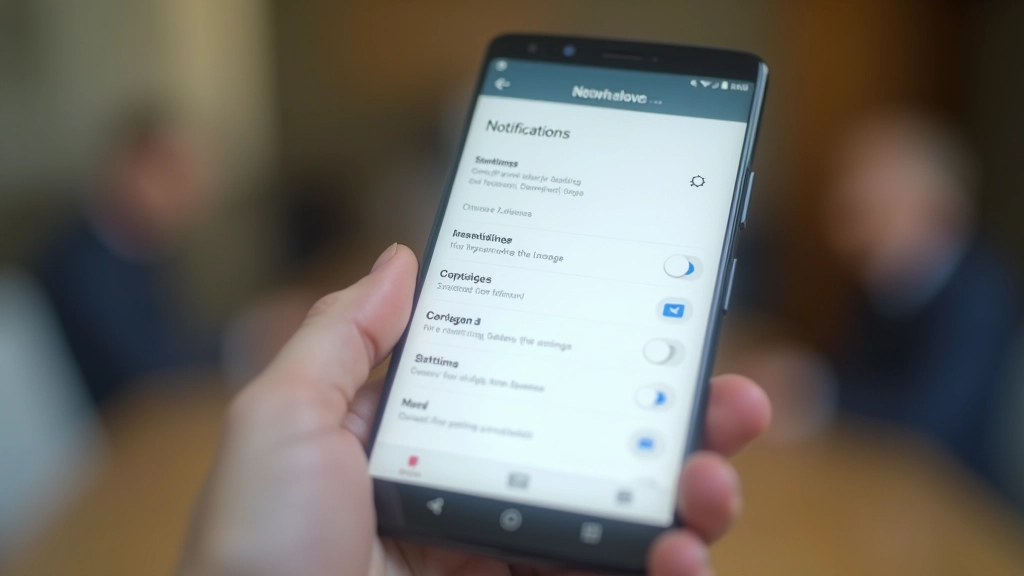
Go through Settings → Notifications and disable notifications for apps you don't really need alerts from. Keep them for messages, calls, and maybe email. Everything else? You'll survive without real-time notifications.
There's also a "Do Not Disturb" setting that silences everything except calls from people in your contacts. Use it when you're eating, working, or just need quiet time. You can schedule it to turn on automatically at certain hours.
- Messages and phone calls: keep notifications
- Email: maybe (depends on your work)
- Social media apps: disable
- Games and shopping apps: disable
- News apps: disable (you can check them when you want)
Text Size and Display: Read Without Straining
If you're squinting at your phone, the display settings need adjustment. This isn't a minor thing — if you can't comfortably read text, you won't use your phone as much as you could.
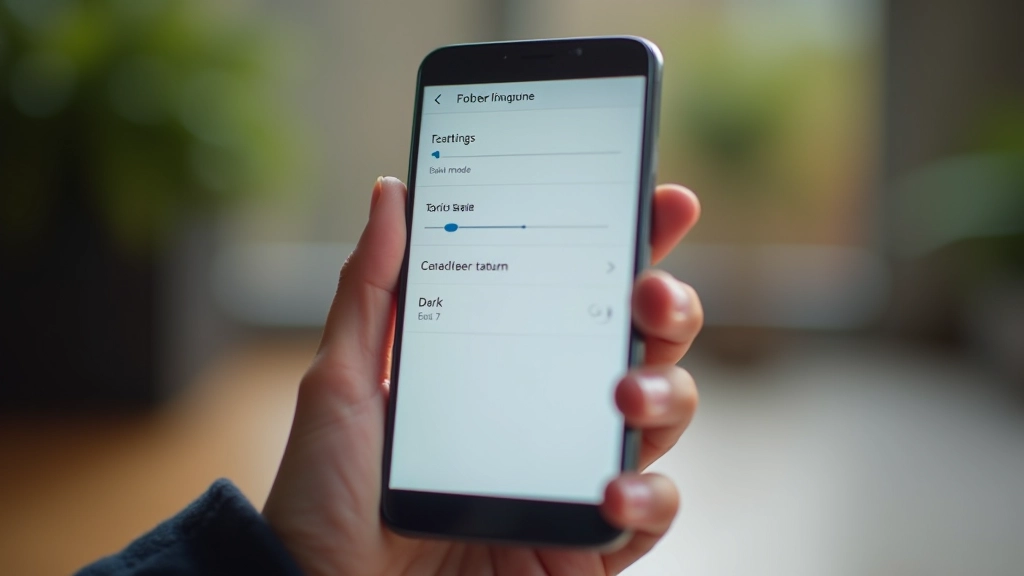
Go to Settings → Display and look for "Text Size" or "Font Size." Make it bigger. Don't worry about whether it looks "right" — if you can read it comfortably, it's right. Most phones let you slide the size up pretty far without breaking layouts.
While you're there, turn on "Dark Mode" if your phone has it. It's easier on the eyes, especially in low light, and it actually saves battery on phones with OLED screens (most modern phones). You can usually set it to turn on automatically at sunset.
Default Settings
Smaller text, bright white background, harder to read for extended periods
Adjusted Settings
Larger text, dark background, easier on the eyes, more battery life
Privacy and Location: Basic Protection
You don't need to be paranoid about privacy, but you should know what's happening with your data. A few simple changes make a real difference.
Location Services
Your phone can track where you are. Most apps don't need this. Go to Settings → Location and set it to "Off" for individual apps that don't actually require it. Keep it on for Maps and maybe your weather app. That's it.
Camera and Microphone
Review which apps have permission to use your camera and microphone. Most don't need it. Turn off permissions for anything that doesn't absolutely require them. You can always turn them back on later.
Contacts and Calendar
Apps don't need access to your contacts or calendar. Be restrictive here. Only the apps you actually trust with this information should have permission.
App Tracking
Your phone can limit how much apps track you across the internet. Go to Settings → Privacy and turn on "Limit Ad Tracking" or the equivalent. It won't break anything.
A Note About Updates
Digital tools and platforms change over time — check the official website or app for the latest details, and take your time getting comfortable with anything new. The settings we've described here are standard on most phones, but exact names and locations might shift with software updates. If you can't find a setting exactly where we said it would be, use your phone's search function (usually accessible from settings) to look for it by name.
That's Really All You Need
You've now covered the settings that actually impact your daily phone use. Battery will last longer. Your phone will buzz less. Text will be easier to read. You've also protected your privacy in practical ways without overcomplicating things.
The rest of the settings? They're there if you want to tinker, but you don't need them. Most people adjust these five areas and call it done. That's exactly right.
Ready to Learn More?
Now that you've got your settings sorted, explore other essential topics for getting the most from your phone.
Browse All Guides
Dhagavishwaska Editorial Team
Editorial Team
Written by the dhagavishwaska editorial team, focused on practical, clear guidance for smartphone setup and everyday app use.
Related Articles
First Steps: Setting Up Your New Smartphone
Everything you need to know during the initial setup process. We'll walk you thr...
Five Apps You'll Actually Use Every Day
Messaging, maps, camera, email, and one more. These apps do most of what you nee...

Staying Safe Online: Security Tips for Your Phone
Passwords, updates, and what to watch out for. Basic protection that actually ke...