
First Steps: Setting Up Your New Smartphone
Everything you need to know during the initial setup process. We'll walk you through it.
Passwords, updates, and what to watch out for. Basic protection that actually keeps you safe without being complicated or stressful.

Your phone holds a lot of personal information. It's where you check your email, manage your bank account, and stay in touch with family. That's why keeping it safe isn't optional — it's essential.
The good news? You don't need to be a tech expert to protect yourself. We're talking about straightforward steps that take a few minutes to set up, then work quietly in the background. No complicated jargon. No unnecessary stress.
Your phone's lock code is your first line of defense. But here's what most people get wrong — they use something too simple. A four-digit PIN like 1234 or your birth year? That's not protection, that's a door left wide open.
A strong PIN or password needs at least 6 characters, mixing numbers and letters if your phone allows it. Better yet, use 8 or more. Think of something personal but not obvious — not your address, pet's name, or anniversary date. Those are the first things someone will guess.
For online accounts, it's even more critical. Your email password should be completely different from your phone PIN. Make each one unique. Yes, it's harder to remember. That's where password managers come in — they're worth the small effort to set up.
Real tip: Write down your passwords on paper and store them somewhere safe at home. Not in your phone's notes app, not in a file named "passwords.txt". A notebook in your desk drawer beats losing access to everything if you forget.
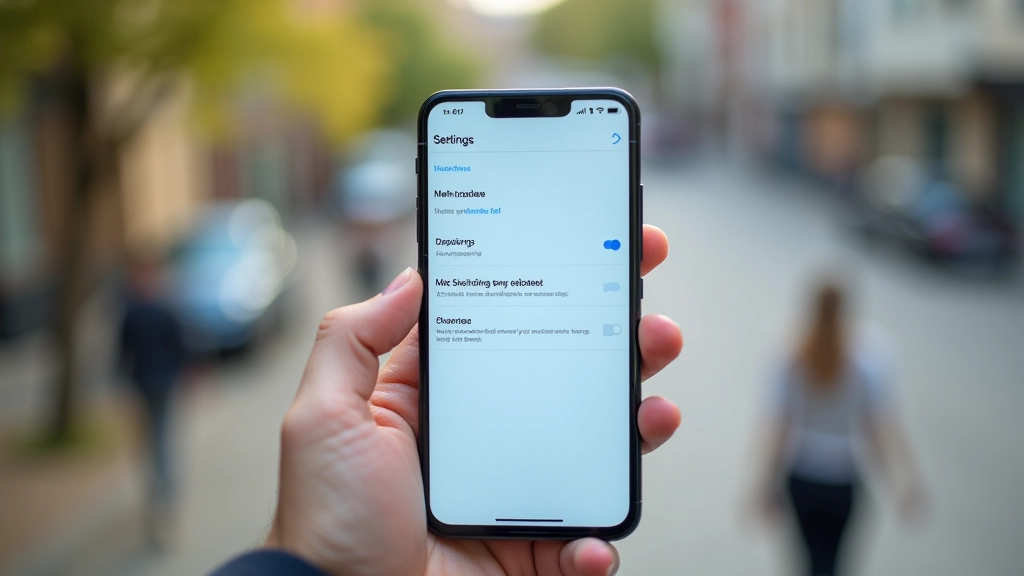
When your phone asks to update, it's not just adding new features. Most updates patch security holes — weaknesses that hackers try to exploit. Skipping updates leaves your phone vulnerable.
Set your phone to update automatically. This way, you're protected without having to remember. On Android, go to Settings > System > System Update > Advanced > Auto System Update. On iPhone, Settings > General > Software Update > Automatic Updates. Turn on "Download iOS Updates" and "Install System Data and Security Fixes."
Don't worry about these updates slowing things down. They actually improve performance and security. The whole process takes a few minutes, usually at night when you're not using your phone. You'll wake up more secure.
Digital tools and platforms change frequently. Operating systems get updated, new features roll out, and settings menus shift. The steps we've outlined here are current as of July 2026, but we recommend checking your phone's official website or the settings app directly for the most up-to-date instructions. Take your time getting comfortable with security features — there's no rush, and it's worth doing right.
Scammers send millions of messages every day hoping someone will fall for them. You'll get texts claiming your bank account is locked, your package needs a signature, or you've won a prize. These aren't real.
Here's what to watch for: urgency language like "Act now!" or "Verify immediately!" Real companies don't pressure you through text. They don't ask you to click links to confirm sensitive information. If a message seems off, don't click anything. Instead, open your phone's browser, type the company's official website directly, and check your account there.
Email phishing works the same way. You might get a message that looks like it's from your bank or a store you use, but the sender's address is slightly different — something like "securitybank.net" instead of "bank.com." Don't click. Call the company directly using a phone number you know is correct.
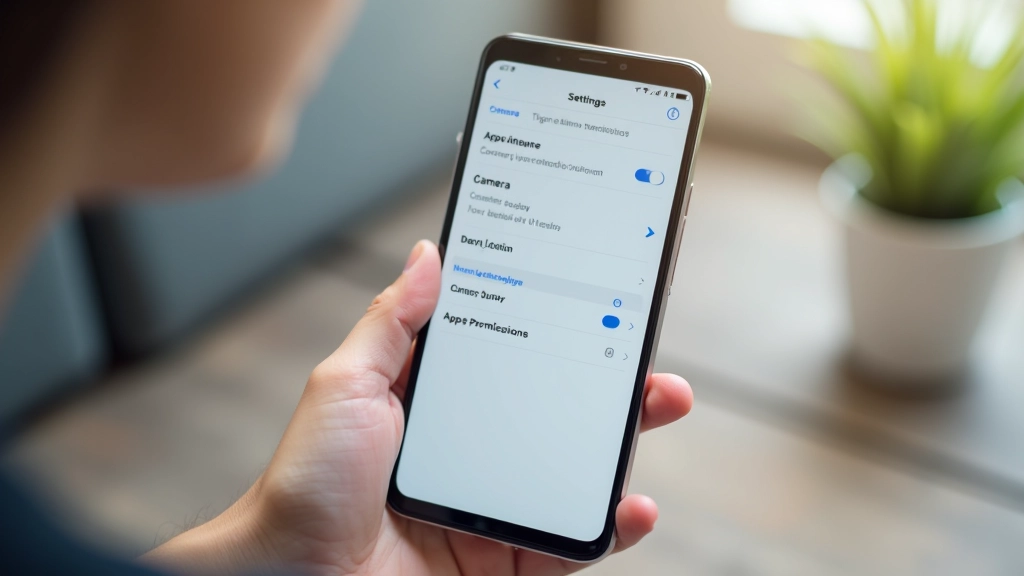
Every app you install asks for permission to access different parts of your phone. A weather app needs location. A photo editing app needs camera access. But does a calculator really need to see your contacts? No.
Review app permissions regularly. On Android, go to Settings > Apps > Permissions. On iPhone, Settings > Privacy. Look through each category — Location, Camera, Microphone, Contacts. You'll see which apps have access. If something seems wrong, revoke it.
A good rule: only give an app permission when you actually need that feature. Don't just say yes to everything during installation. You can change permissions later. Be especially careful with location access — many apps want it but don't really need it.
Phone security sounds complicated, but it's really just a few practical steps. A strong password. Automatic updates. Caution with suspicious messages. Careful app permissions. That's most of what you need.
You don't need to become an expert. You just need to be thoughtful. Spend an afternoon setting these things up once, and you're protected for months. Your phone will keep working normally — it'll just be working safely in the background.
Ready to learn more about smartphone setup? Check out our other guides to get even more comfortable with your device.
Explore Phone Settings Guide
Editorial Team
Written by the dhagavishwaska editorial team, focused on practical, clear guidance for smartphone setup and everyday app use.
Everything you need to know during the initial setup process. We'll walk you through it.
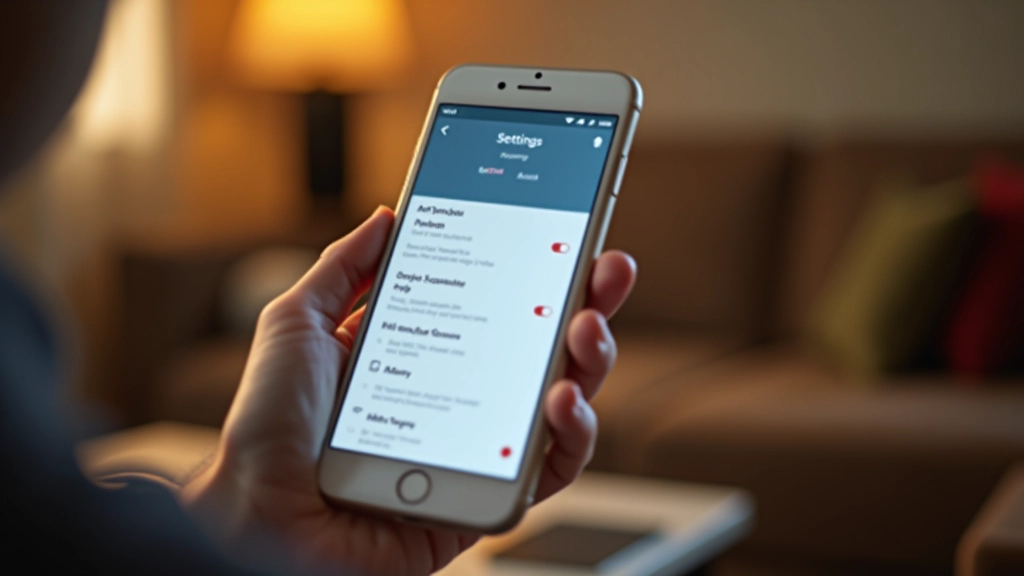
Not all settings are important. We've picked out the ones that make your phone easier to use.
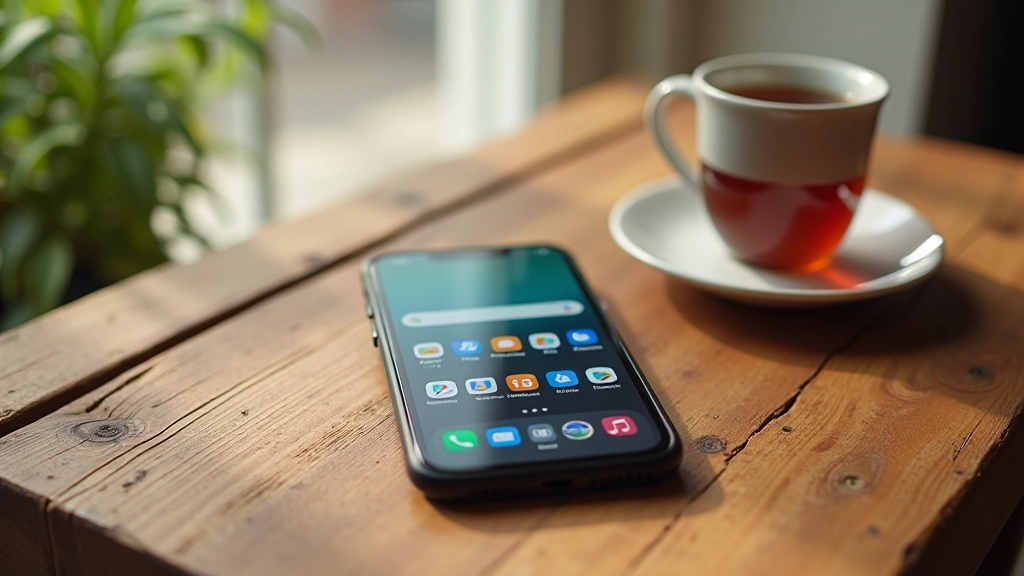
Messaging, maps, camera, email, and one more. These apps do most of what you need.